Repair Blog

Expert Troubleshooting Advice, Screen Protection Tips, & Device News

How Yokine Residents Can Get Fast iPhone Screen Repairs
Jul 15, 2026

How Yokine Residents Can Get Fast iPhone Screen Repairs

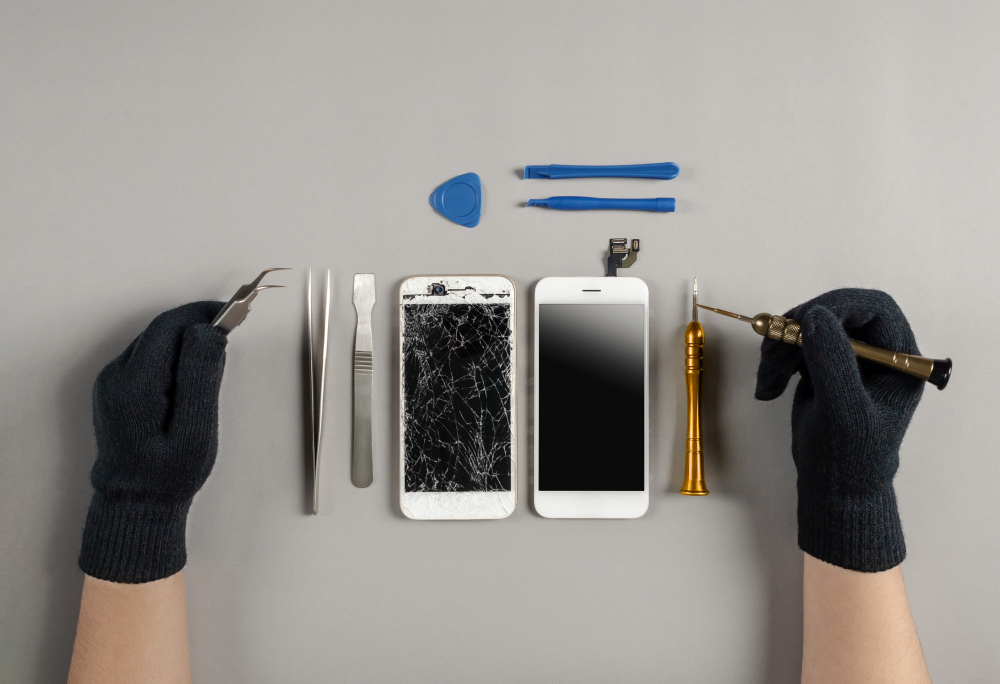
Cracked screen on your iPhone in Yokine? Don't stress. Getting a high-quality display replacement is easier than you think. In this article, we explain the difference between aftermarket displays and OEM premium displays, ensuring you make the right choice for touch response and color accuracy.Understanding Screen Replacement OptionsWhen you take your phone in for screen replacement, you're usually presented with two choices:Premium OEM-Grade Displays: These displays match the original manufacturer specifications. They offer identical color vibrancy, brightness, and durability, and support features like True Tone.Budget Aftermarket Displays: These are cheaper alternatives. While they function well, you might notice slightly cooler color profiles, lower peak brightness, or a fractionally thicker glass frame.The Danger of Liquid DamageMany Yokine locals think their water-resistant iPhone can survive pool splashes or heavy rain. However, liquid resistance seals degrade over time. If your phone gets wet, turn it off immediately. Do NOT put it in rice—this introduces fine dust into the charging port. Bring it to a diagnostic center where technicians can open the housing and safely dry the logic board with isopropyl alcohol.Fast Battery DiagnosticsIf your device is lagging or shutting down unexpectedly, a battery swap is a cost-effective solution to double the lifespan of your handset. A quick 15-minute battery health check at our shop will reveal whether your iPhone is throttling CPU performance due to chemical wear.
Professional Laptop Repairs In Bayswater & Bassendean
Jul 15, 2026

Professional Laptop Repairs In Bayswater & Bassendean

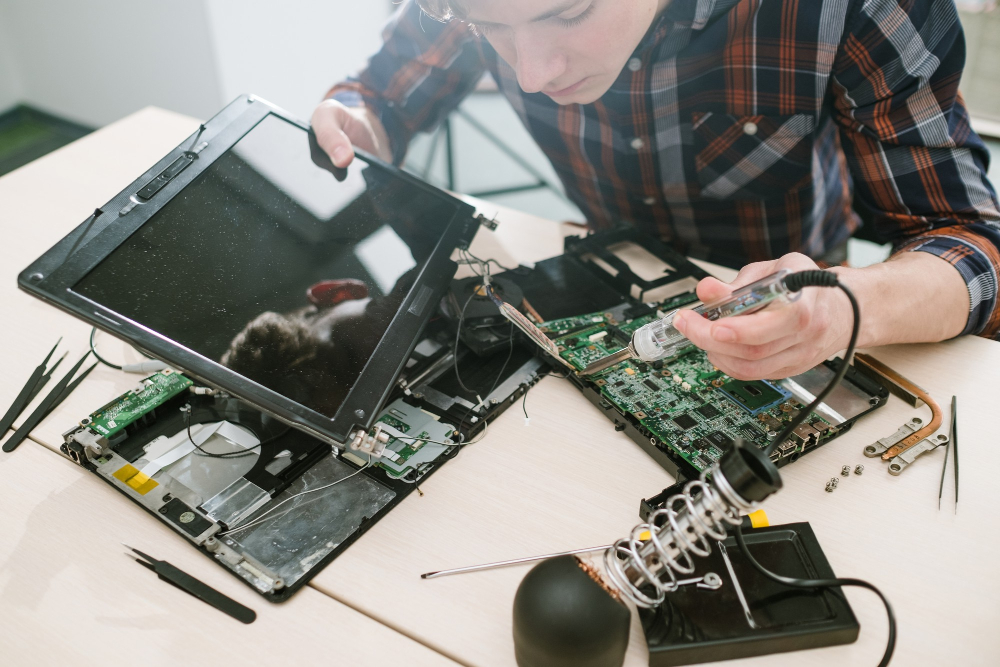
Laptops are vital for work, study, and leisure in Bayswater and Bassendean. From keyboard repair and liquid damage cleanups to SSD upgrades and operating system reinstalls, find out how our tech workbench handles notebook faults quickly.1. SSD Speed UpgradesIs your laptop taking minutes to load up or freezing during basic multitasking? The issue is likely a slow mechanical hard disk drive (HDD). By upgrading your system to a Solid State Drive (SSD), you can increase your system speed by up to 10 times. SSDs have no moving parts, making them faster, more power-efficient, and far more durable than traditional hard drives.2. Overheating & Fan CleaningLaptops draw in air to cool down internal processors. Over time, dust blocks the cooling fans and heatsink vents. This causes the CPU to overheat, leading to thermal throttling, system crashes, and permanent hardware damage. We recommend a professional internal cleaning and thermal paste replacement once a year to keep your laptop running cool and quiet.3. Laptop Screen ReplacementsAccidentally closing your laptop with a pen on the keyboard is the leading cause of cracked laptop screens. We source high-quality replacement panels for HP, Dell, Lenovo, ASUS, Acer, and Apple MacBooks, restoring full display clarity with minimal downtime for Bayswater and Bassendean customers.
Top 5 Troubleshooting Tips for Dianella Mobile Users
Jul 15, 2026

Top 5 Troubleshooting Tips for Dianella Mobile Users

Before rushing to a repair shop in Dianella, try these simple troubleshooting hacks to resolve minor software freezes, charging port dust obstructions, and audio speaker static glitches on your device.Tip 1: Force Restart a Frozen PhoneIf your screen is completely frozen and won't respond to touch, a simple soft reset can fix it. On most modern devices, press and hold both the Power button and Volume Down button simultaneously for 10 seconds until the logo appears.Tip 2: Clean Your Charging Port SafelyDust accumulation and pocket lint are the most common reasons phones refuse to charge. Over time, lint gets compressed inside the port, preventing the cable from making full contact. Use a wooden toothpick or a plastic SIM ejector tool to gently scoop out debris. Avoid using metal needles as they can short-circuit the gold contacts.Tip 3: Manage Battery Performance SettingsCheck which apps are drawing the most background power. Go to Settings > Battery to view usage. Disabling background app refresh and location tracking for non-essential apps can extend daily battery life significantly.Tip 4: Clear App Cache & System StorageIf your device runs slowly or shows 'Storage Full' alerts, clearing browser cache files and offloading unused applications will restore system performance and fluidity instantly.
Mirrabooka & Balga Device Maintenance Checklist
Jul 15, 2026

Mirrabooka & Balga Device Maintenance Checklist

Maximize the longevity of your smartphones, tablets, and personal computers in Mirrabooka and Balga with this expert-approved seasonal hardware and software maintenance checklist.1. Preventative Screen ProtectionA high-quality tempered glass screen protector combined with a drop-tested shockproof case can save you hundreds of dollars in accidental screen replacement costs. Screen protectors act as a sacrificial layer, absorbing the impact force when the phone lands face down.2. Backup Your Data RegularlyHardware can fail unexpectedly, and devices can be lost or stolen. Ensure your photos, contacts, and documents are securely backed up to cloud services (like iCloud or Google Drive) or to an external physical storage drive once a month.3. Keep Operating Systems UpdatedSoftware updates contain essential security patches and bug fixes. Running outdated firmware makes your device vulnerable to security threats and can lead to battery drain and compatibility issues with modern applications.4. Professional DiagnosticsIf your laptop runs hot or your phone screen flickers, bringing it to a local service station in Mirrabooka or Balga for early diagnostics can prevent minor issues from turning into major hardware failures.